How to Manage Shopping Cart


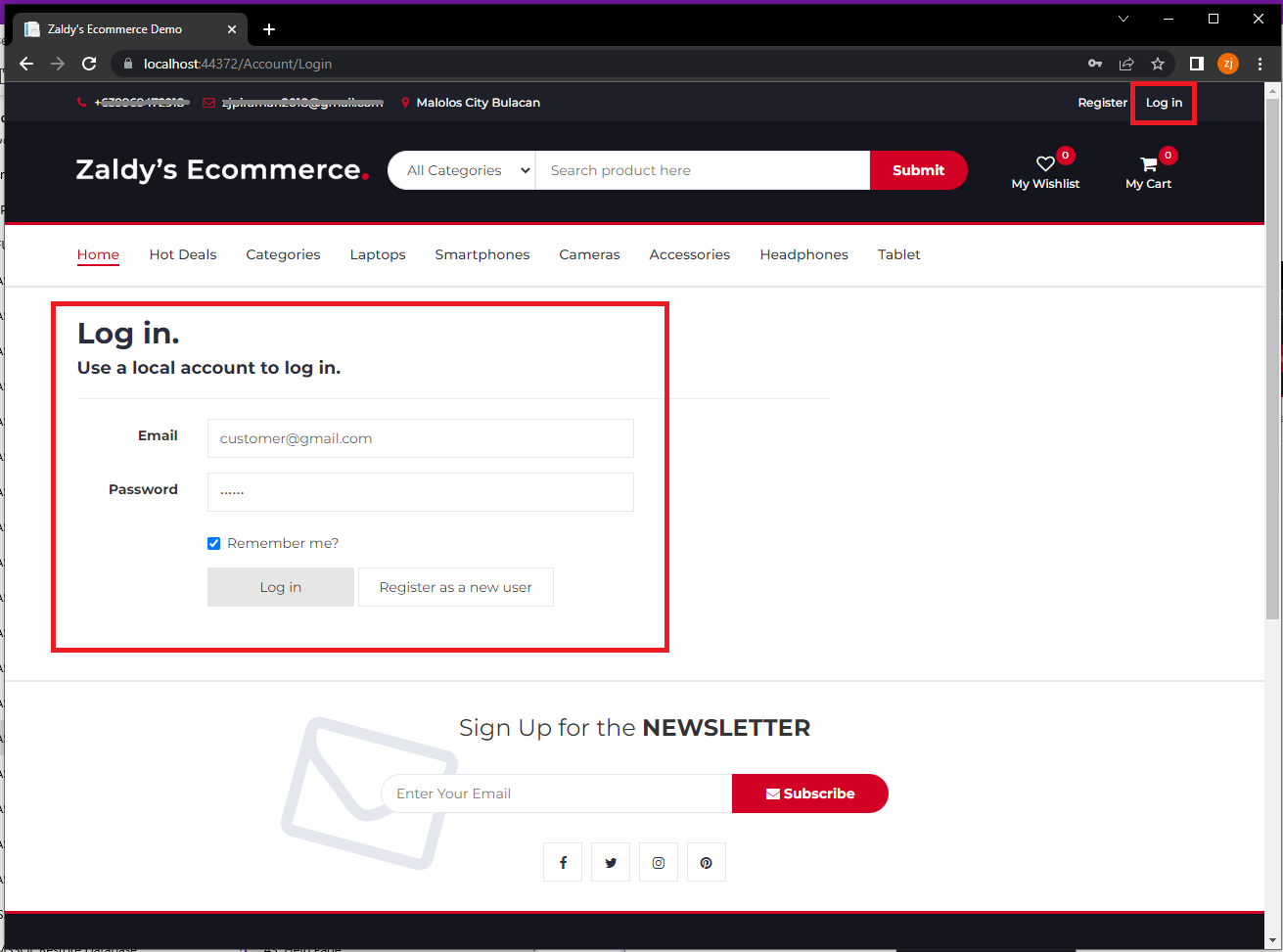
1. Login Customer Account
login customer account

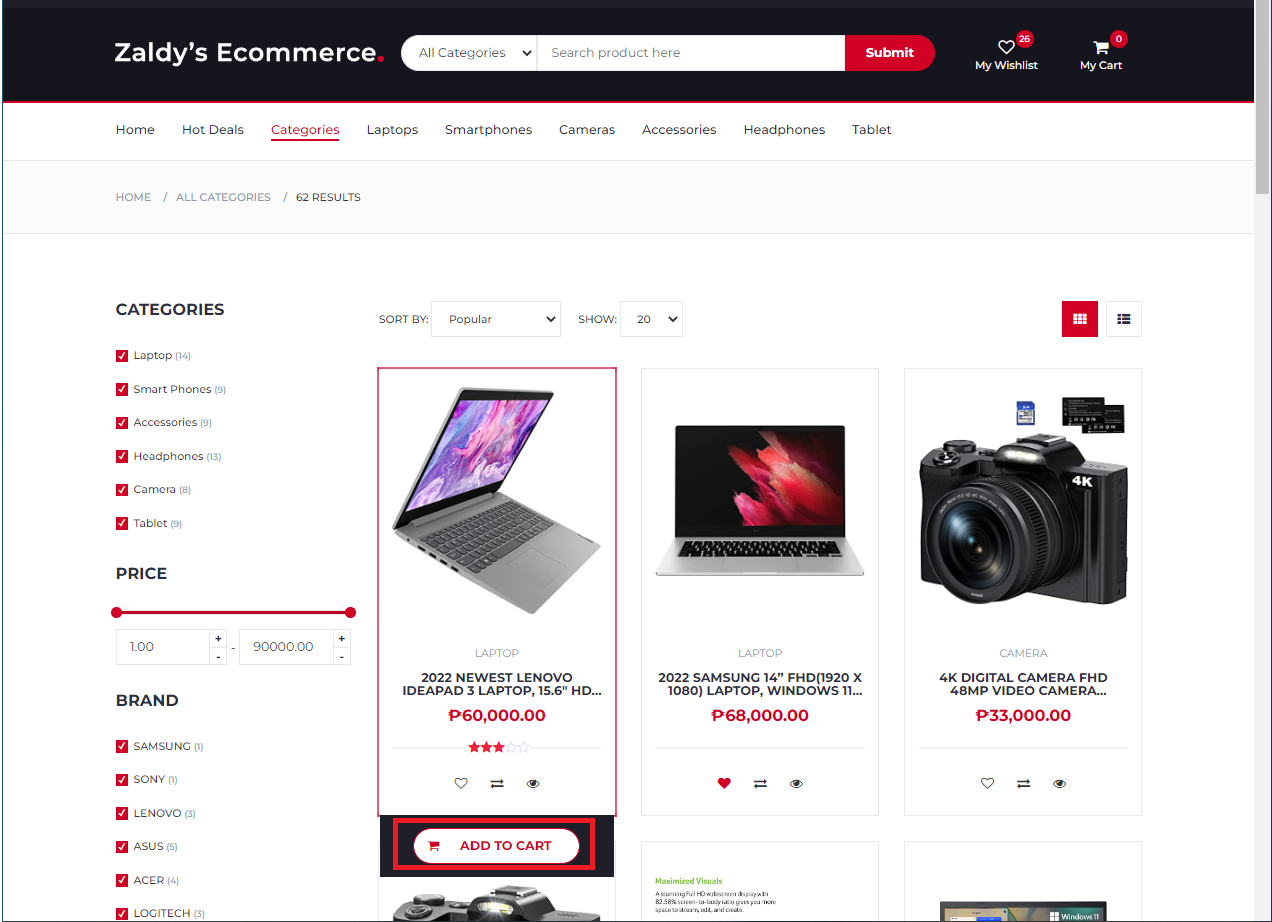
2. To add to shopping cart on Product Card View click the "Add To Cart" button on the bottom of the product image

add to shopping cart

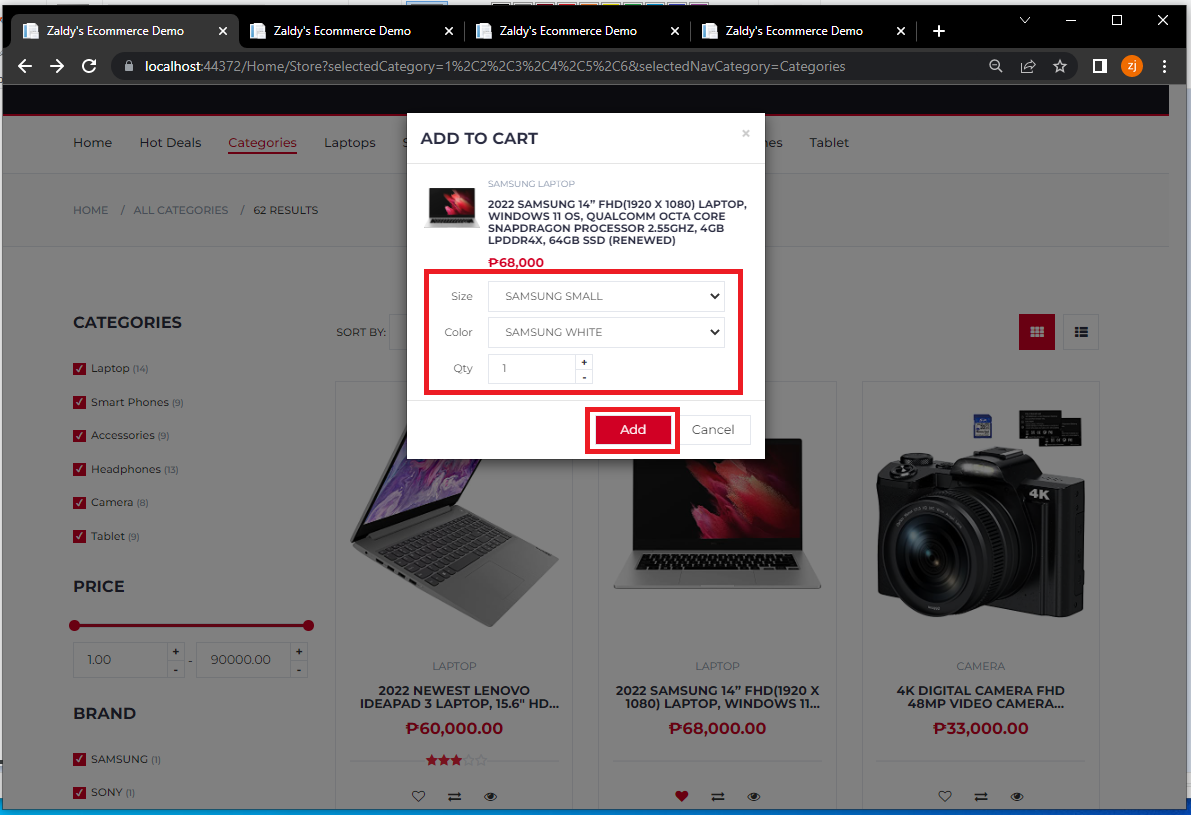
Choose product quantity, color and size

add to cart details

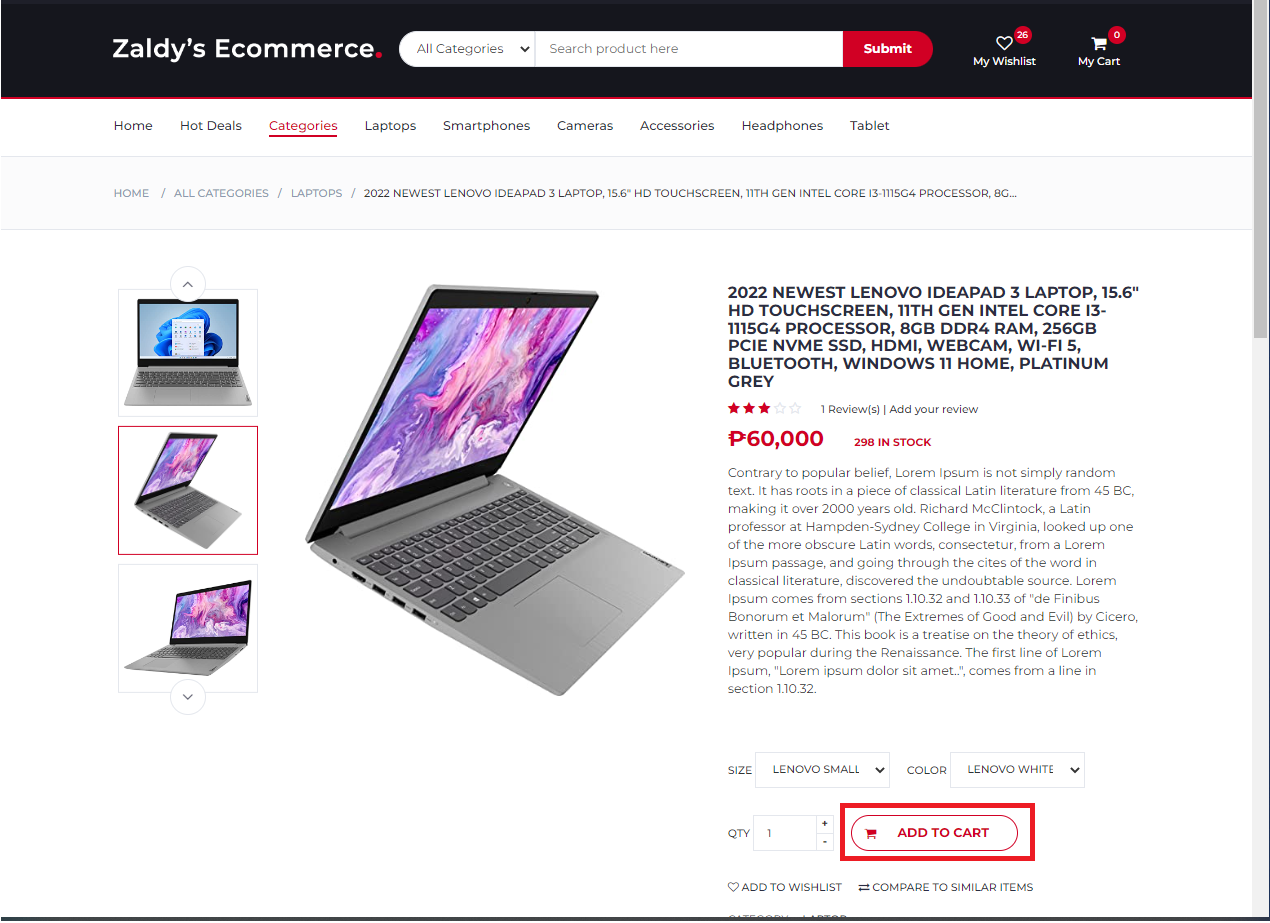
3. To add to cart on product page click "ADD TO CART" button located below the product description

add to cart

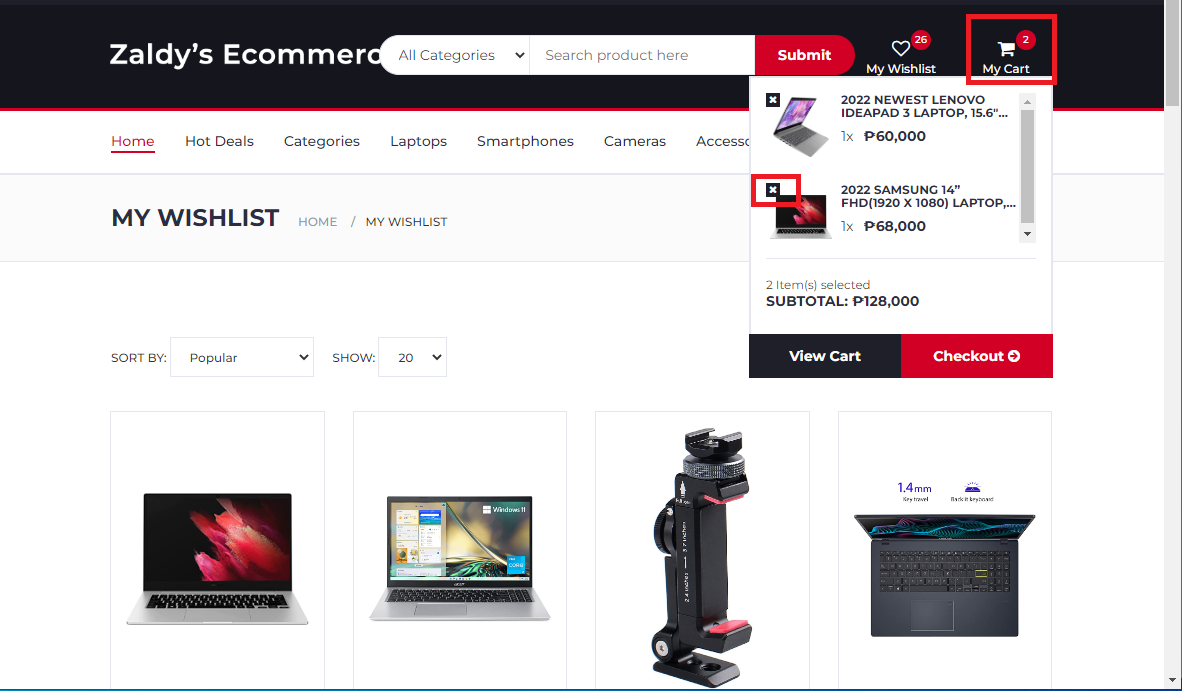
4. To remove product from shopping cart click the My Cart button on main header then click the x icon next to product image on shopping cart list popup menu

remove to cart

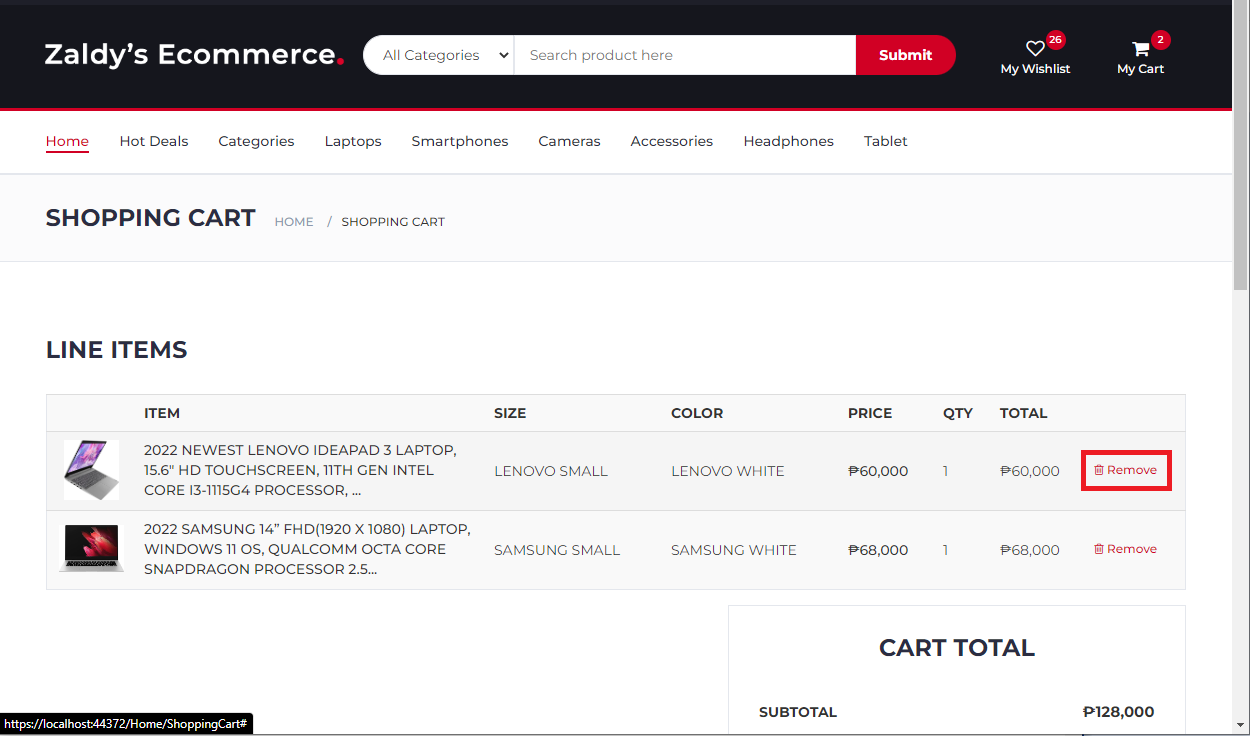
5. To remove product from shopping cart page click the remove button on the Line Item's list

remove to cart

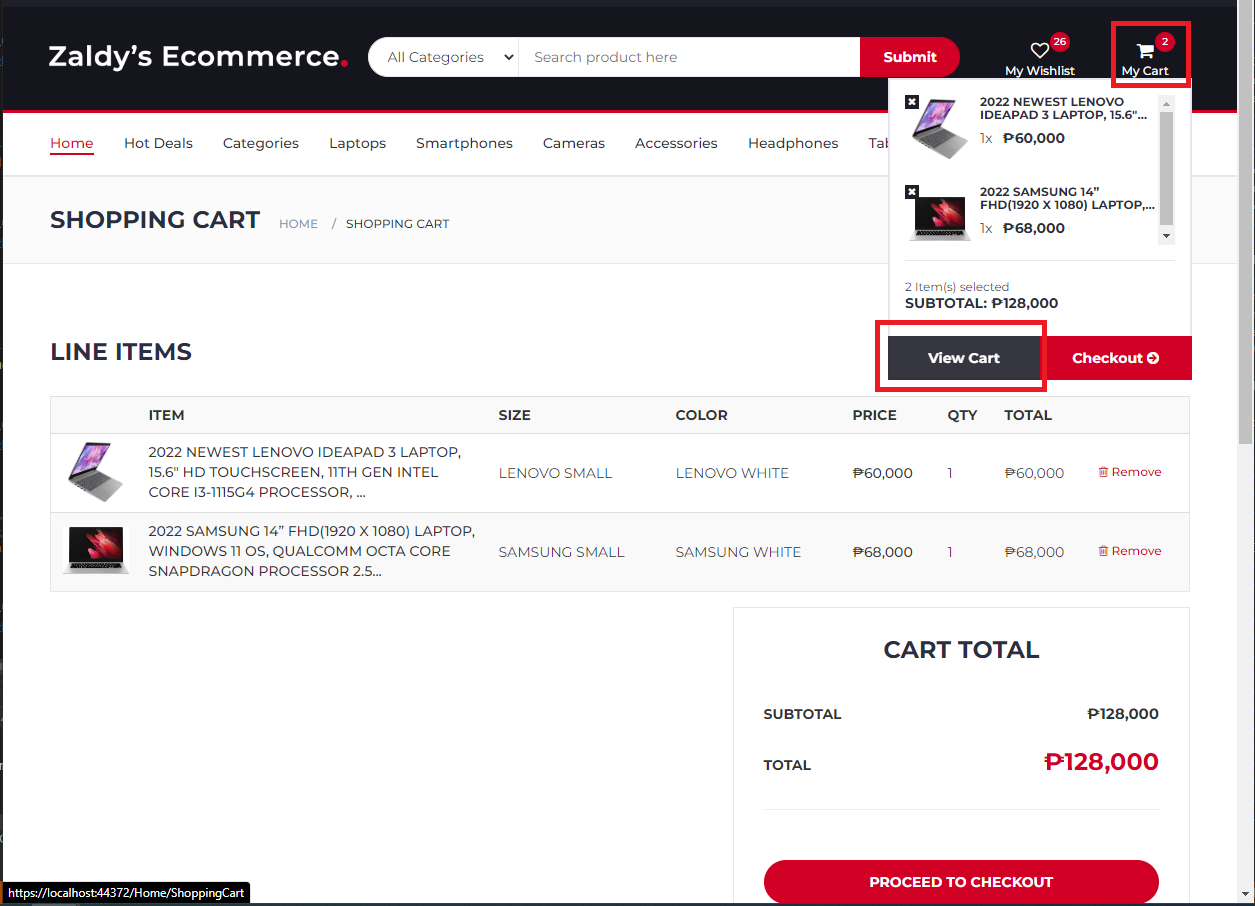
6. To View all product's added to shopping cart click the My Cart button on the main header menu then on the popup shopping cart list menu click the view cart button

remove to cart

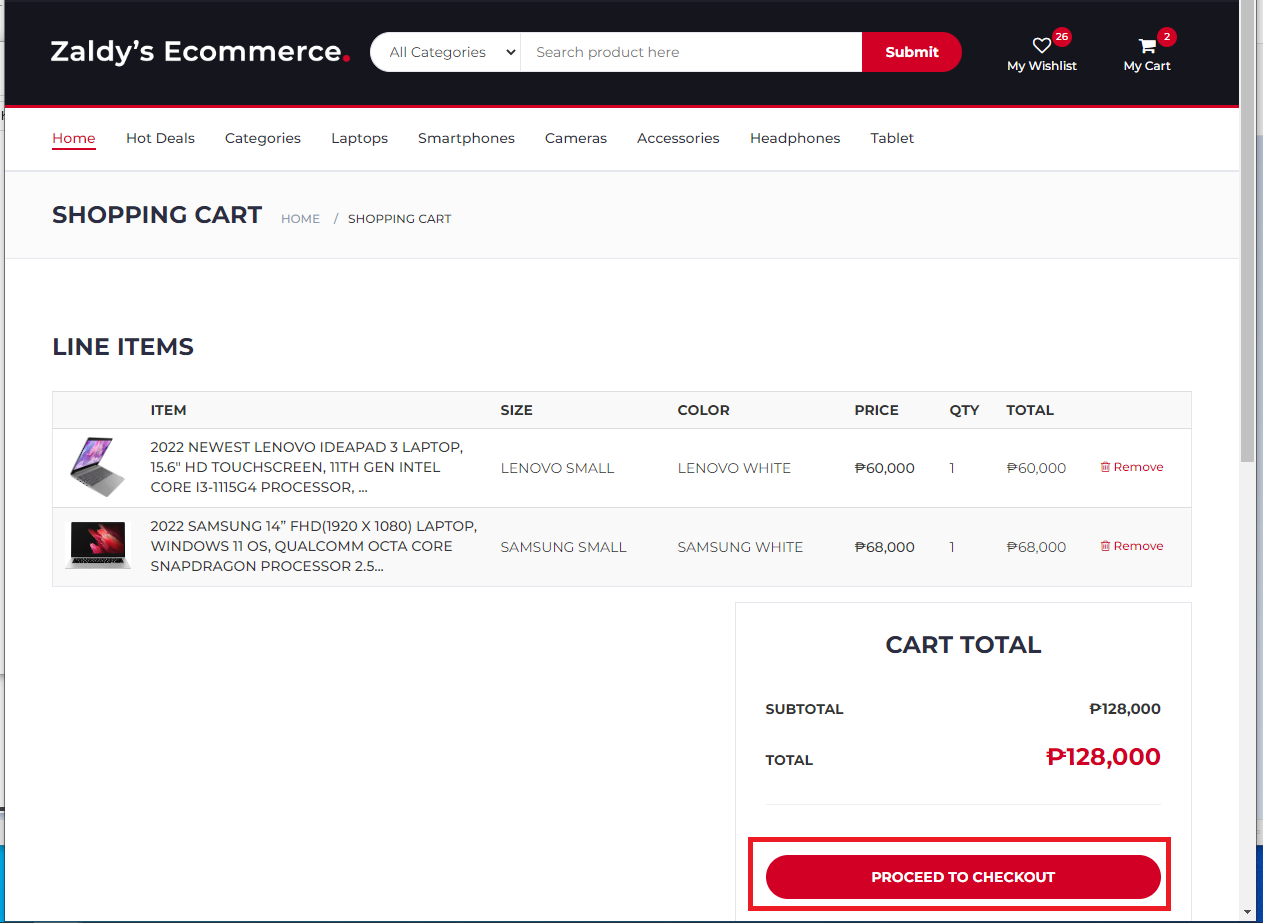
7. To Checkout shopping cart click the "Proceed To Checkout" button on bottom the shopping cart page

remove to cart

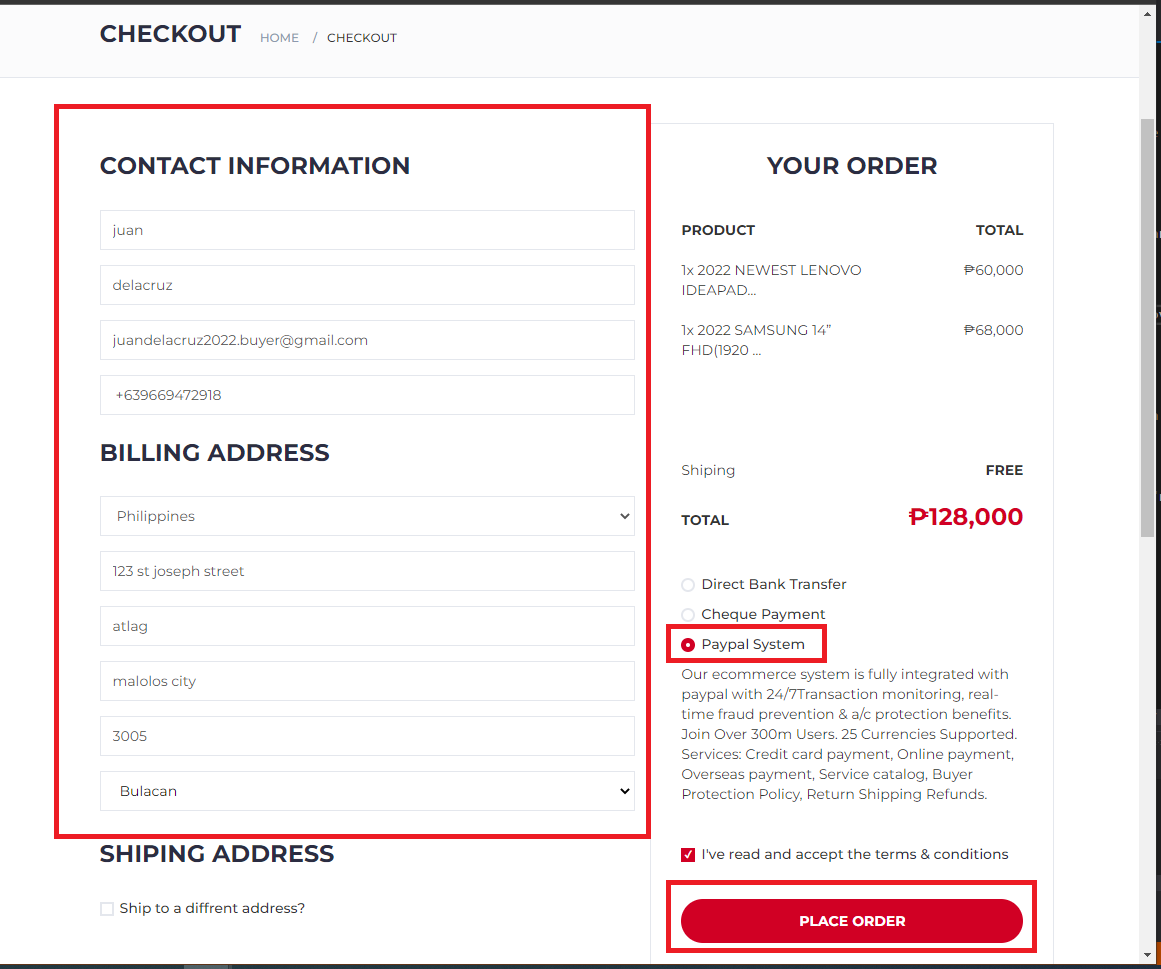
8. Enter contact and billing address details then click "Place Order" button

remove to cart

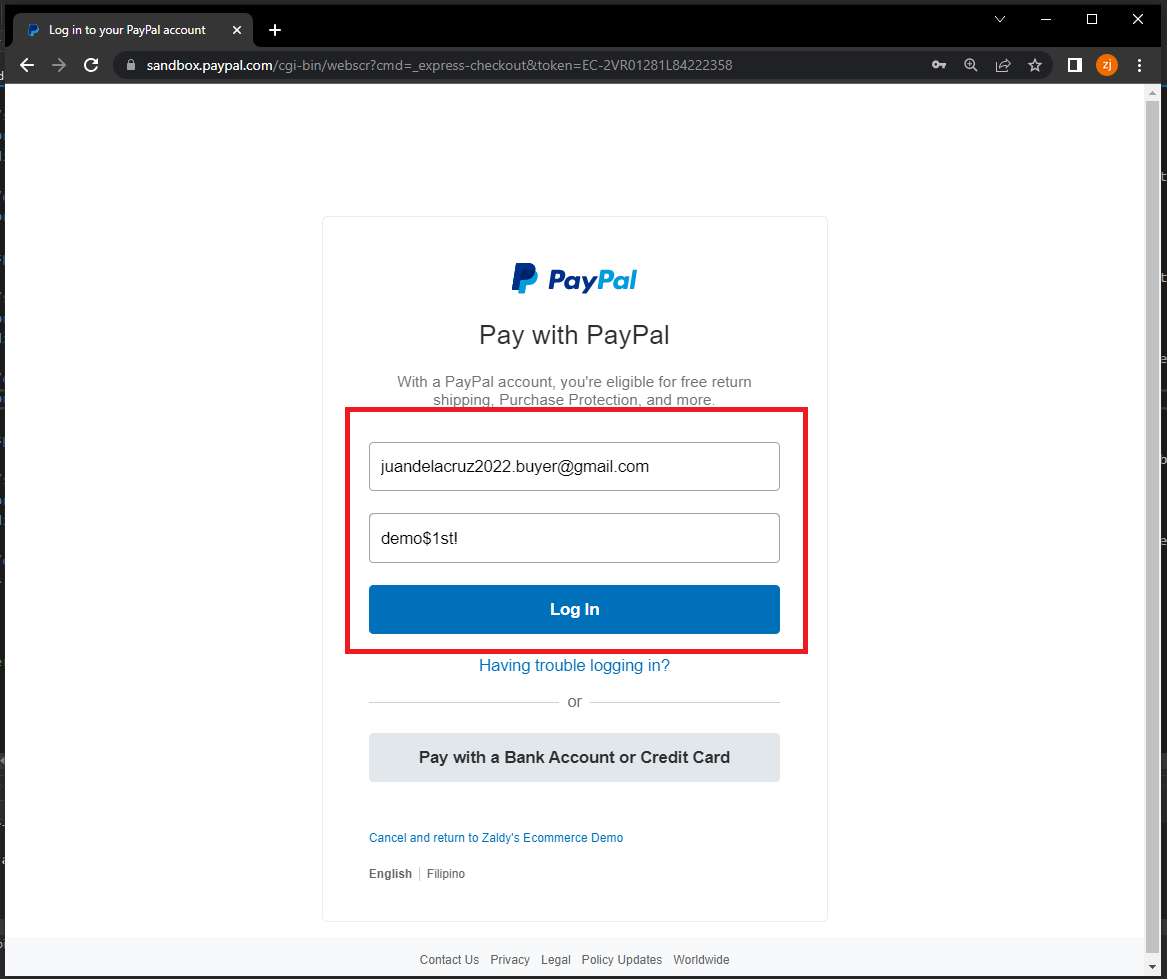
9. Login paypal account
remove to cart

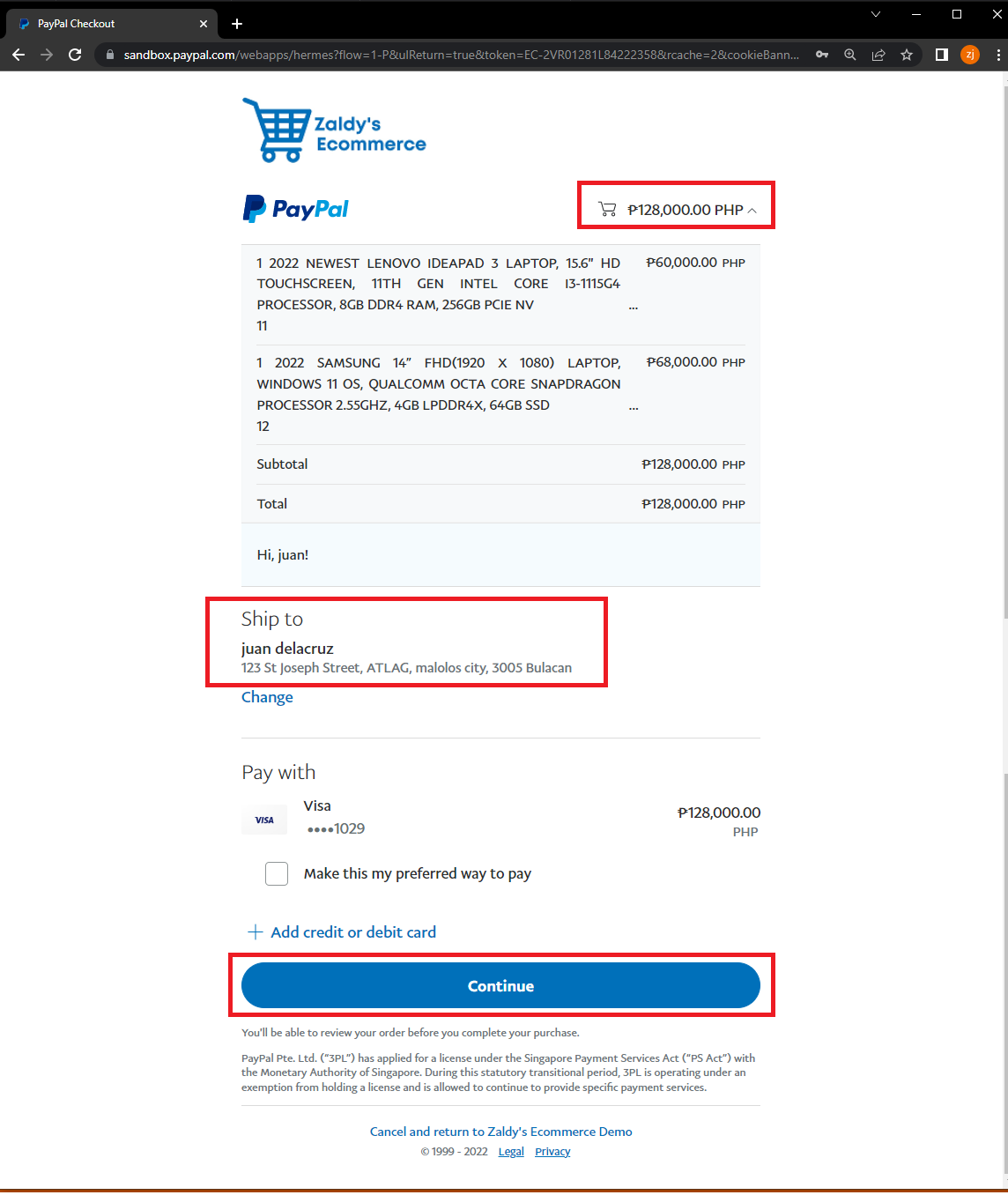
10. Check list of product and shipping address then click Continue

remove to cart

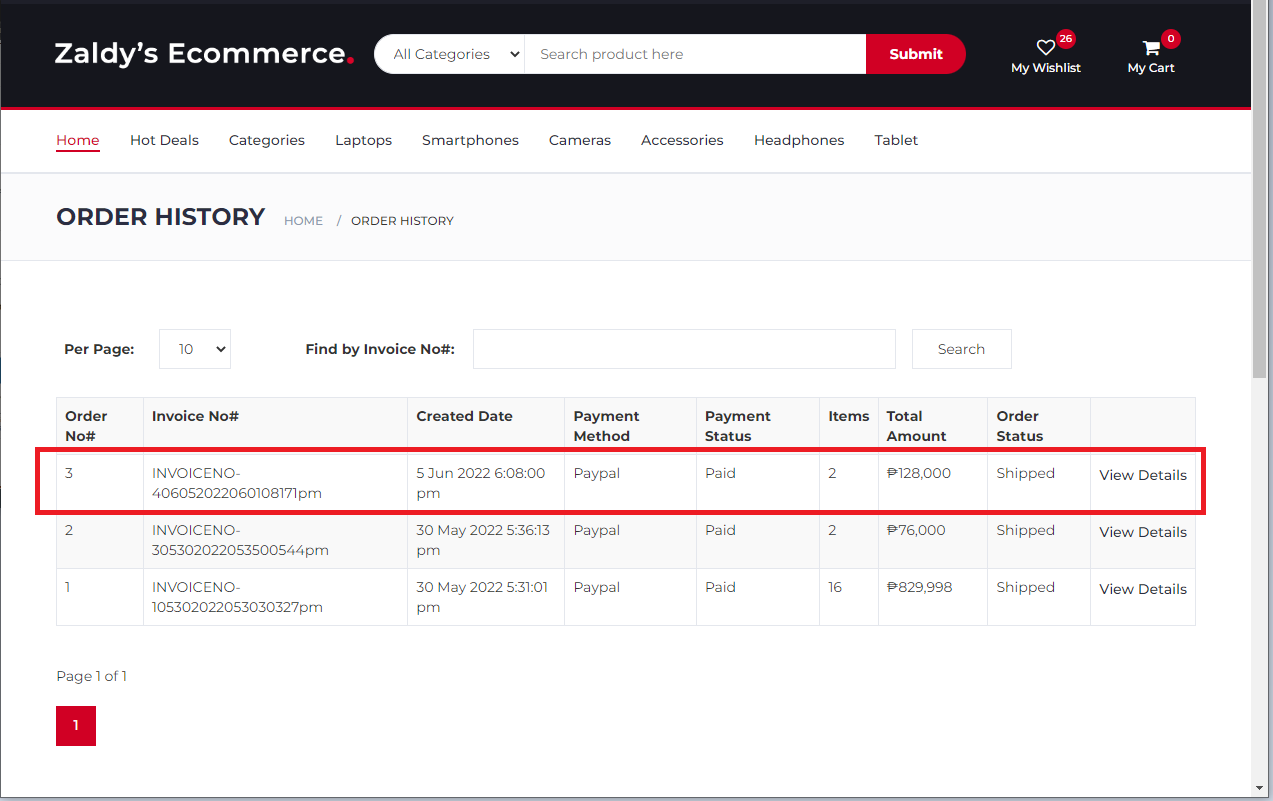
11. When payment succeed you will be redirected to order page and your order will be added to order list

remove to cart
Web hosting by Somee.com